Getting started
Let Wundo write your reports and keep track of your insights per colleague
After every one-to-one, Wundo can have a draft report ready for you and keep track, per colleague, of what mattered: conclusions, agreements and concerns. That way you naturally take them into your next conversation, without taking notes yourself. To do that, turn on the notetaker: Wundo then takes notes during your conversation, online or in person.
Last updated on 12 November 2026
Silent video, about 18 seconds. Turn on the notetaker: in Settings, the manager turns on the switch Let the notetaker join. Wundo joins your call. Let it in: in Teams, Wundo waits in the lobby, with the buttons Deny and Admit. After the conversation, your report is ready: the Report tab of the 1:1 with Nora shows the draft report. Copy it and share it yourself: the manager clicks Copy.
Online conversations in Teams or Google Meet
-
Turn on the notetaker for your calls
Go to Settings, the Conversations tab, and under Report turn on the switch Let the notetaker join. Wundo then automatically joins the online conversations it follows for you, such as your one-to-ones, in Teams or Google Meet.

-
Let Wundo into the call
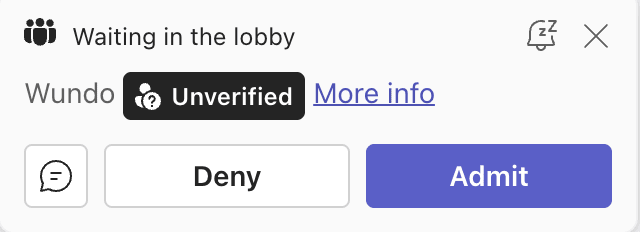
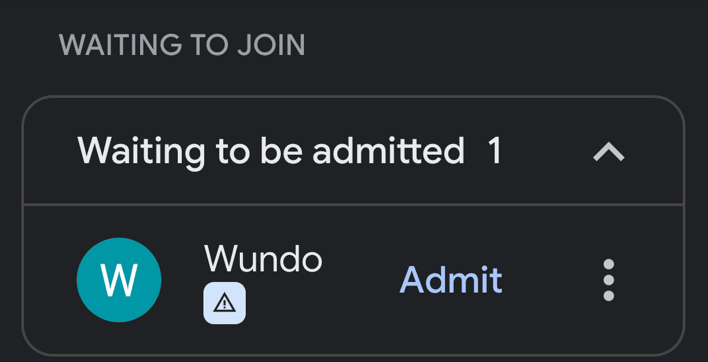
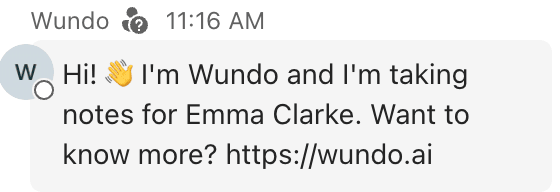
When the call starts, Wundo joins as a participant named Wundo. Wundo also posts a short message in the chat to say it is taking notes. Is Wundo waiting in the waiting room or lobby? Then let it in: click Admit in Teams or Google Meet.
Watch outIf you don’t let Wundo in, the conversation isn’t recorded. Wundo didn’t get in? Then there is no report. Paste your own notes into the Report tab.
In-person conversations
-
Open the conversation and start recording
Open the conversation in Wundo. If it has no online link, the block An in-person conversation? appears above the tabs, with the button Start recording. You also find that button at the top, under the title, in the menu with the microphone, under In-person conversation. Choose and test your microphone, then start recording. Wundo records the conversation with your device’s microphone. Let your colleague know that Wundo is taking notes.
Silent video, about 12 seconds. In person? Click Start recording: for the 1:1 with Sam, which has no online link, the manager clicks Start recording in the block An in-person conversation? Choose your microphone and start recording: the manager chooses MacBook Pro Microphone and clicks Start recording. Wundo takes notes. Done? Click Stop: the recording runs for a few seconds, then the manager clicks Stop.
-
Click Stop when you’re done
Keep the page open until you end the recording. Done? Click Stop.
Your report
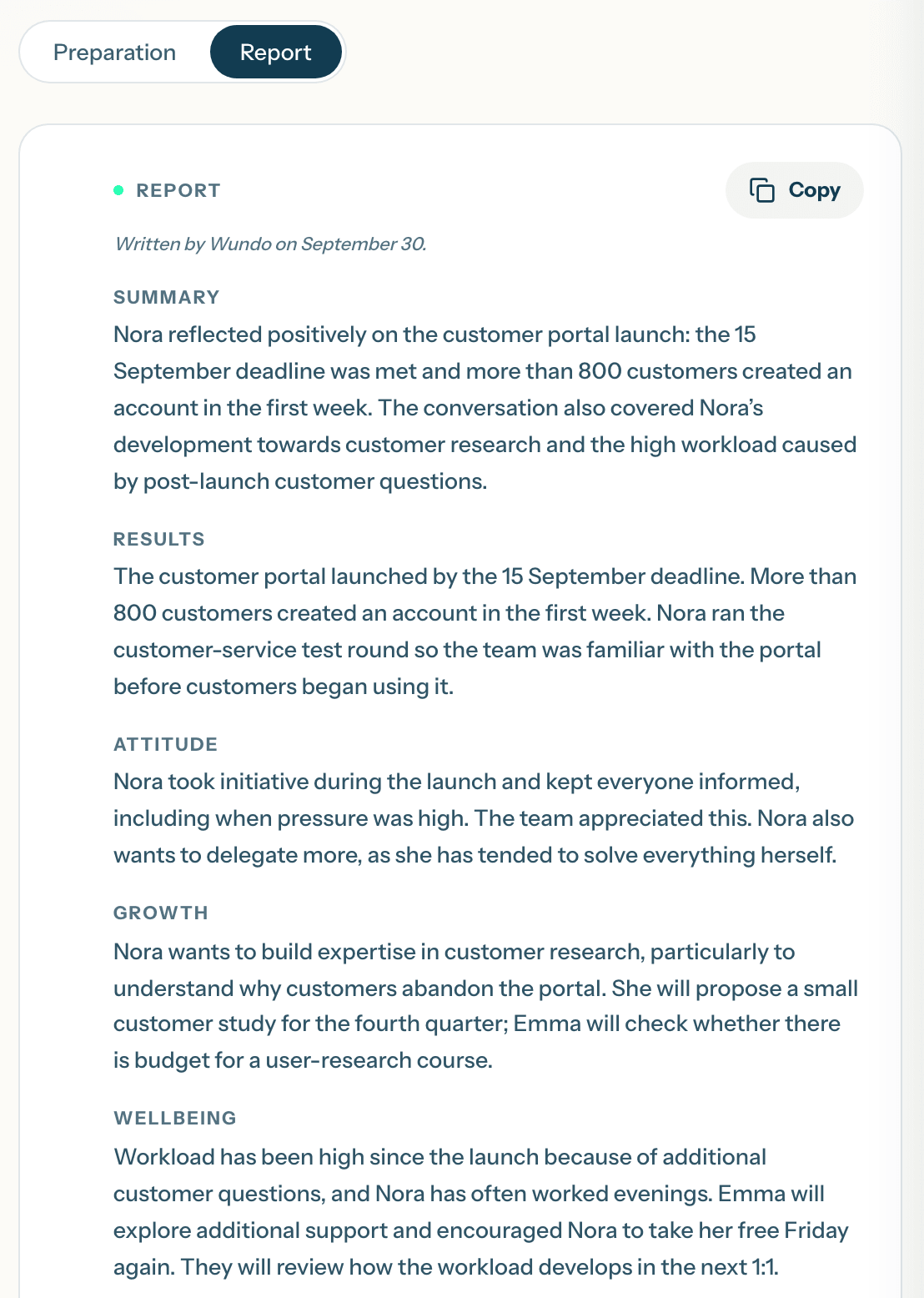
After the conversation, online or in person, the draft report is ready in the Report tab. Wundo doesn’t share it automatically: only you can see it. Read it through and edit it where needed. Want to share it? Click Copy and paste it into an email or into Teams. The agreements and points of attention come back in your next preparation.
One conversation without the notetaker
Open the conversation. At the top, under the title, you see Notetaker on. Click it and turn the switch off. Wundo then asks Just this once, or always? Choose Just this once for this one conversation, or All conversations with followed by your colleague’s name if you never want to use the notetaker with that colleague. Your other conversations keep their support.
Silent video, about 10 seconds. Click Notetaker on and switch it off: for the online 1:1 with Nora, the manager clicks Notetaker on at the top and turns the switch off. Choose Just this once: Wundo asks Just this once, or always?, and the manager chooses Just this once. The notetaker is now off for this conversation: the top now reads Notetaker off.
Your report stays yours. Wundo doesn’t share it with anyone unless you do so yourself. In online conversations, Wundo is always visible as a participant. In an in-person conversation, let your colleague know that Wundo is taking notes. You can switch off the notetaker per conversation or per colleague.