Getting started
All your 1:1s per colleague in one place
The Team page brings all your 1:1s together. For each colleague you see when your next 1:1 is, which 1:1s you have already had and where you stand. You find the page under Team in the menu.
Last updated on 12 November 2026
Silent video, about 15 seconds. All your 1:1s per colleague in one place: the Team page, with at the top a circle per colleague, below it the list with the next 1:1 for each colleague. Turn on Automatic preparation: the manager turns on the switch for Tom Goossens. Click a colleague and see where you stand: the manager opens Noor Claes, with the points per topic and what is still open under Where you stand, and below that her next 1:1 and her earlier 1:1s.
How does Wundo know who you have a 1:1 with?
Wundo reads the title of the meetings in your calendar.
Wundo builds the Team page itself from your calendar, from three months back to one month ahead. If a meeting’s title says it is a 1:1, your colleague appears on the Team page.
Tip: put one of these words in the title of your invite, and Wundo recognises your 1:1 straight away: 1:1, 1-1 or 1-2-1. Some other variants work too, such as 121, one-on-one or one-to-one. A performance review, an appraisal or a development talk counts too, as does a title with just your two names.
Is a colleague not there yet?
Plan a 1:1 with that colleague in your calendar, with for example 1:1 in the title. Your colleague then appears on the Team page on their own.
Want to hide someone from the list? Open the colleague and choose Hide colleague in the More actions menu. Nothing is deleted. You find the colleague again under the Hidden contacts filter.
An overview per colleague
For each colleague you see when your next 1:1 is, or how long ago the last one was. Click a colleague for all the details: how often you see each other, your next 1:1 and all your earlier 1:1s, with for each conversation whether there is a report. Click a 1:1 to open the conversation.
Automatic preparation
Turn on the switch, and Wundo prepares your 1:1s with that colleague.
Next to each colleague is the Automatic preparation switch. When it is on, Wundo prepares every 1:1 with that colleague and sends you the preparation before the conversation. You also find it in the conversation itself, on the Preparation tab.
By default you get the preparation the evening before, in an overview of your conversations for the next day. Prefer the morning itself, or another time? Choose it in Settings, the Notifications tab, under Before the conversation.
You turn on the notetaker separately: for one colleague with the Turn the notetaker on button on that colleague’s page, or for every conversation Wundo helps with using Let the notetaker join in Settings, the Conversations tab. The latter also covers your 1:1s with colleagues who have Automatic preparation on: you don’t need All meetings in your calendar for that. More about the notetaker
If you turn the switch off, Wundo no longer prepares your 1:1s with that colleague and the notetaker no longer joins them either. Only want the notetaker gone for that colleague? Open the colleague and choose Turn the notetaker off in the More actions menu.
Where you stand
Wundo keeps track of the conversation info per colleague: what mattered and what is still open.
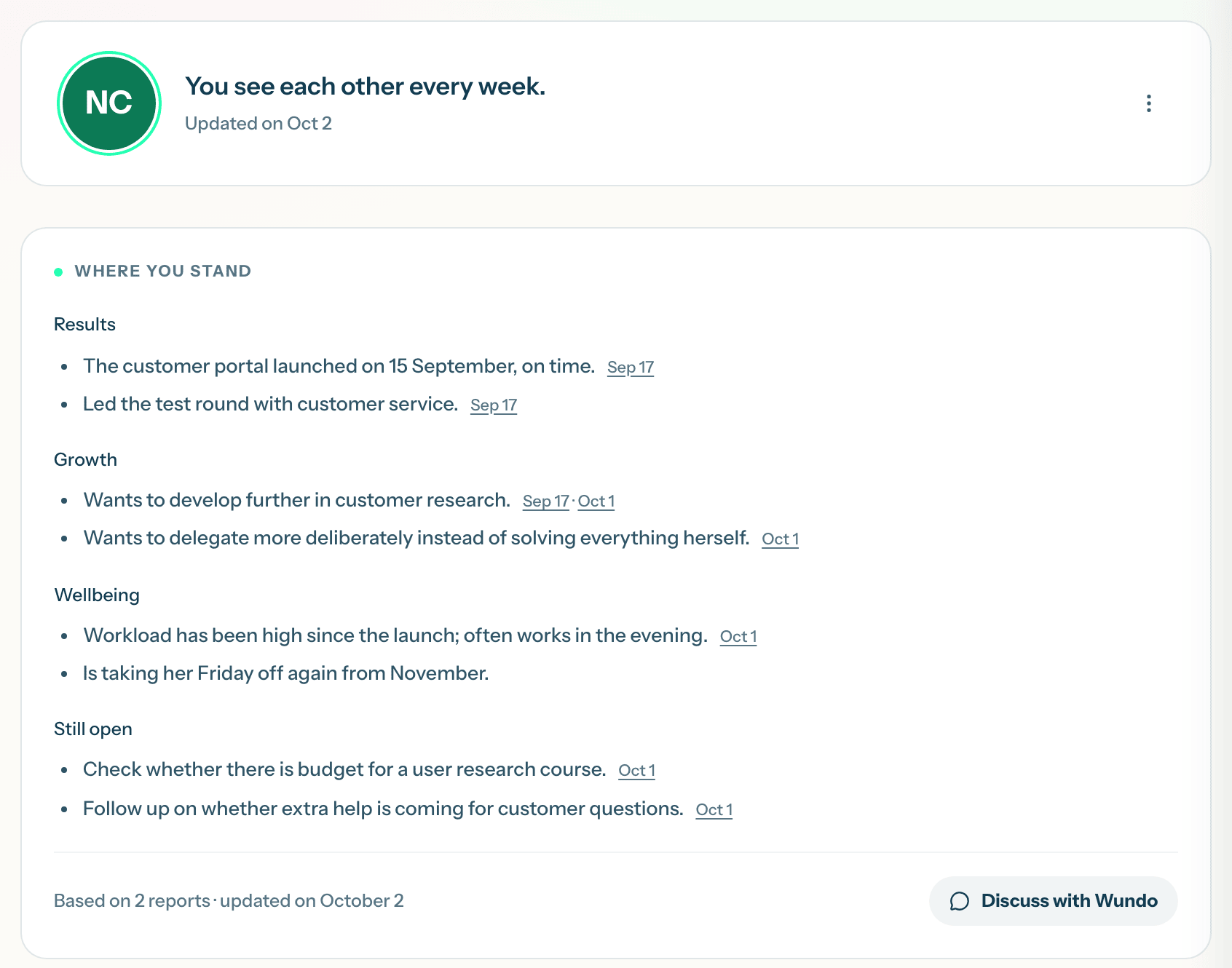
Click a colleague’s name. Under Where you stand you see what Wundo remembers from your conversations, per topic, and what is still open. For each point you see which conversation it comes from.
That conversation info grows from:
- the notetaker’s report, in an online or an in-person conversation
- notes you add yourself on a conversation’s Report tab
- what you tell Wundo in the chat about a conversation or about your colleague
Does it say No conversation info yet? Turn on the notetaker for your next 1:1, or add your own notes after the conversation.
Asking questions and adding information via Teams or Slack
You can always ask Wundo a question in Teams or Slack about a colleague or your 1:1, for example: “What do I need to know for my 1:1 with Jan?” If you tell Wundo something new, for example that Jan would like more responsibility, Wundo updates Jan’s conversation info.
On a colleague’s page? Click Discuss with Wundo to talk about that colleague in the chat straight away.
Your Team page is for you only: nobody else sees it. You only see colleagues you have a 1:1 with, not your whole organisation. Hiding a colleague deletes nothing: conversations and reports are kept.