Getting started
Getting started with Wundo
Starting with Wundo? You’re set in a few steps: you connect your calendar, choose which one-to-ones Wundo helps you with, and you’re off. It takes about two minutes.
Last updated on 12 October 2026
Silent video, about 32 seconds. Welcome to Wundo: the manager clicks Continue. Wundo briefly shows what you get: the manager clicks Next. Connect your calendar, for example Microsoft 365: the manager clicks Microsoft 365. Sign in to Microsoft and give Wundo access to your calendar: the manager picks the account and clicks Accept. Tick your one-to-ones. The report is already on: the manager ticks James Walker, Noah Bennett, Olivia Hughes, Priya Shah and Sam Taylor, leaves Wundo writes the report too on and clicks Confirm. Your one-to-ones are ready in your Agenda. Another conversation? Click + Wundo: the manager goes to next week and clicks + Wundo next to 1:1 Daniel.
-
Welcome
Wundo welcomes you. Click Continue.
-
What you get
Wundo briefly shows what it does for you: preparation, practice conversations and coaching, support during the conversation with the notetaker, report and follow-up, and keeping track of every conversation partner. Click Next.
-
Connect your calendar
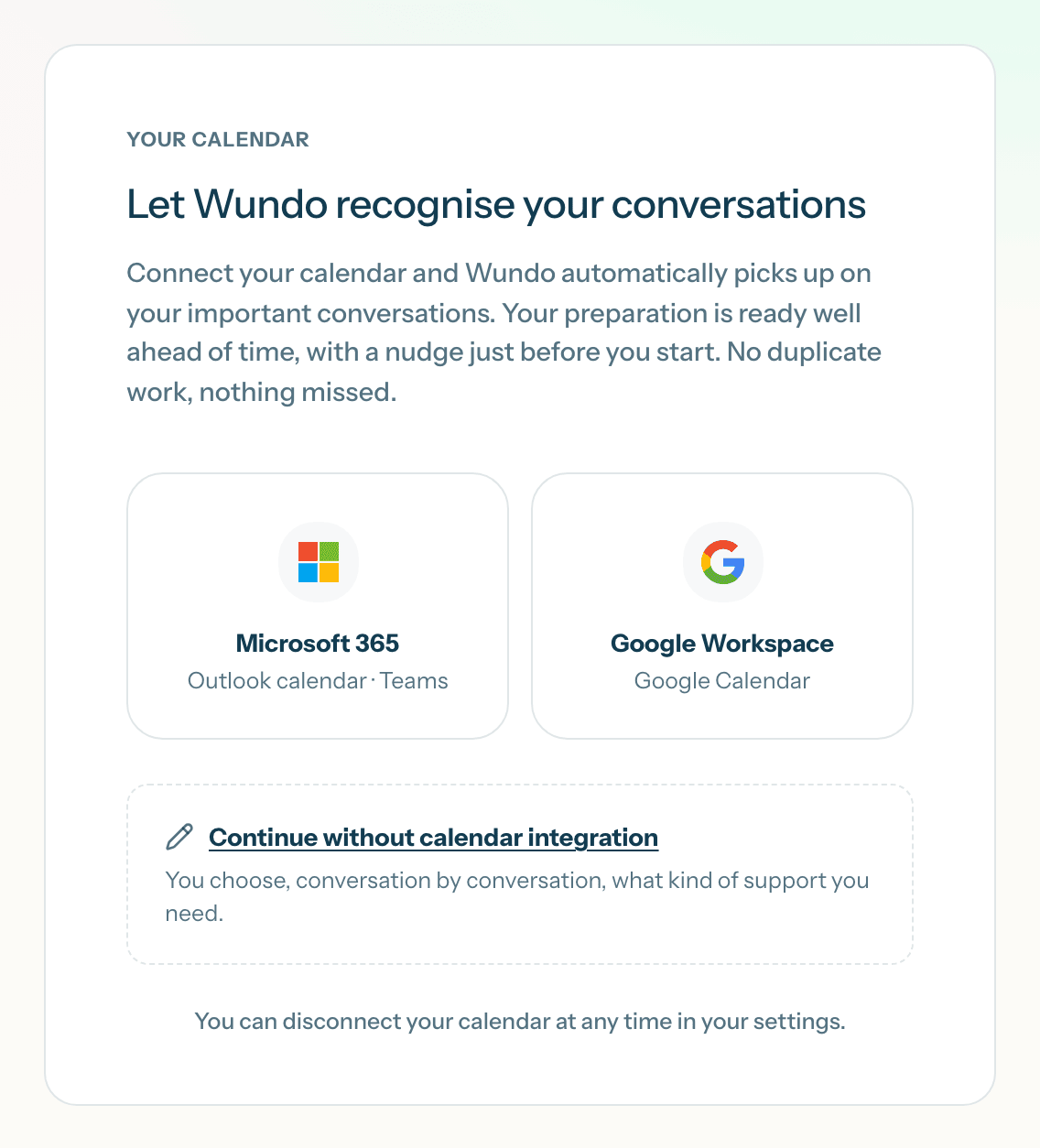
With your calendar, Wundo recognises your conversations by itself. Choose what suits you:
-
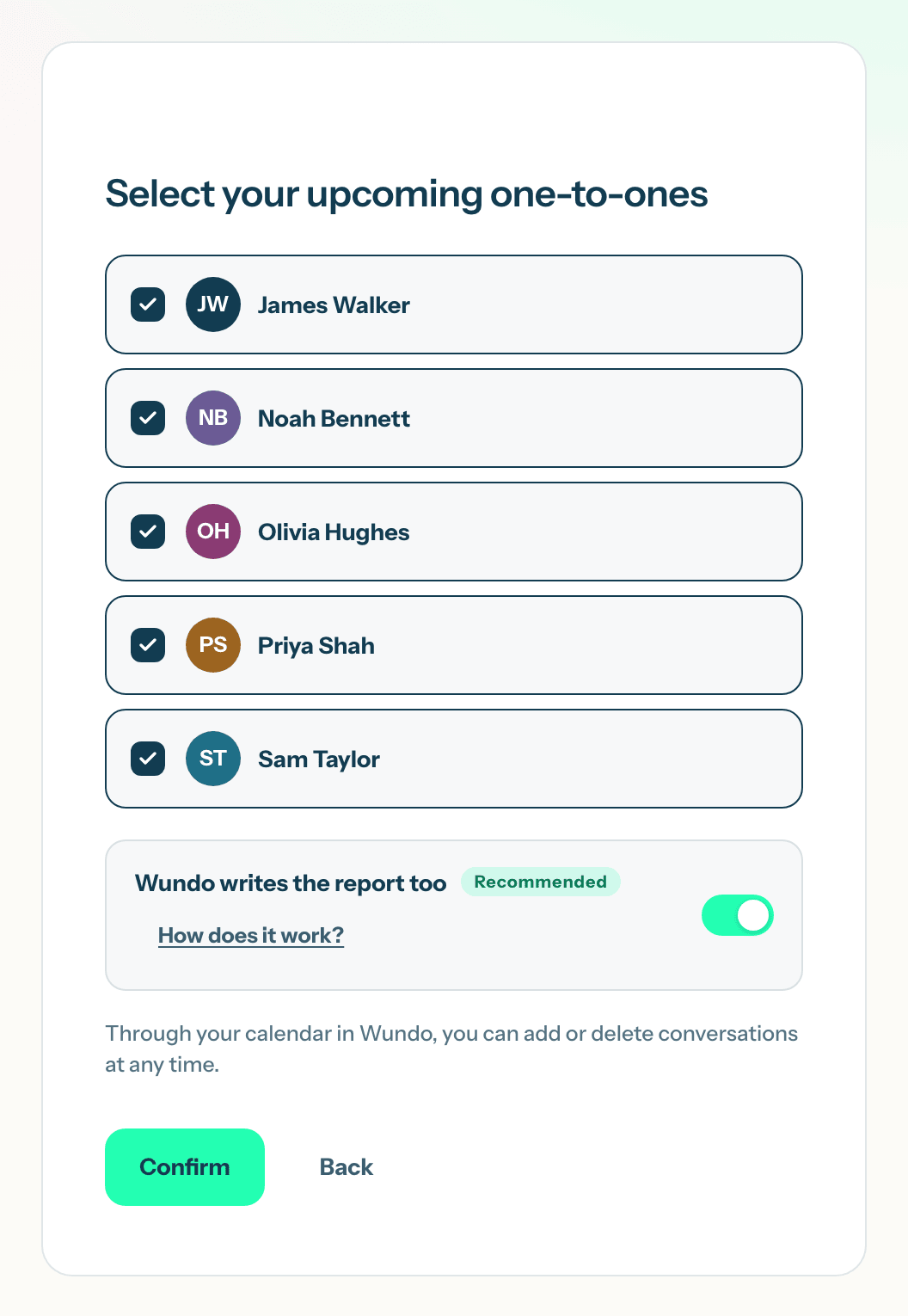
Select your upcoming one-to-ones
Wundo shows the colleagues you have one-to-ones with. Tick the colleagues Wundo may help you with. Wundo then prepares your one-to-ones with them. Leave Wundo writes the report too on (Recommended): after the conversation you get a draft report, and Wundo remembers what you discussed with that colleague. That way your next conversation with that colleague is well prepared. Read more about the notetaker. Then click Confirm.
Your Agenda
After the last step you land on your Agenda. The conversations Wundo helps you with are ready to prepare.
Wundo doesn’t only help with one-to-ones. It can also support you in other conversations with a colleague or in a team meeting with several people. Those conversations show + Wundo: click it to add Wundo.
Your choices from the first steps aren’t set in stone. In your Agenda you add or remove conversations at any time. In Settings > Connections you disconnect or reconnect your calendar.